Mini PC home servers, part 1: What a small PC can run at home
One of the most useful computers in your home could be one nobody ever sits in front of. A mini PC—a complete desktop computer in a compact box—can sit quietly on a shelf, helping your devices find websites, running home automation and receiving backups while everyone gets on with their day. That is a home server: a computer that stays on and provides services to the other devices in your home.
Most home-server jobs need little computing power. A small business mini PC can run DNS filtering, home automation, containers, media and virtual machines for practice and learning, making it a capable mini PC home server. The first step is to imagine what your home server could take care of for you.
A machine's generation and configuration matter more than its badge or whether it is the newest model. For professional-grade hardware at an accessible price, choose a refurbished business mini PC from a reputable seller, with documented testing and a warranty.
Part 1 covers what a small PC can run, where it stops and which mini PC families are available. It also shows you how to choose one and get started with it as a home server. Later parts look more closely at buying and running costs, and at Lenovo Tiny models and experiments.
What a home server is, and what a homelab adds
You want to restart your computer to test a new setting, but the rest of the house depends on it for DNS. The same machine is your homelab and the household’s home server. A home server is a role, not a special kind of processor: any computer that stays available and provides services to other devices can do the job. A service is something another device asks for, such as a DNS lookup or a dashboard.
It’s easy to confuse a home server with a homelab. Here’s the difference:
- Home server: A computer that stays available so other devices at home can use its services, such as DNS filtering, automation or somewhere to send backups.
- Homelab: An environment where you learn, change configurations and run experiments.
One computer can do both jobs. But restart it for a test and you could take the household’s DNS or automation down, interrupting services that others at home rely on. Treat household DNS, routing and automation as services with users, even when those users are family.
Do you need a home server? If nothing at home needs to stay available to other devices, there’s nothing to build. If a DNS filter, an automation hub or a backup target should stay available, a small always-on machine fits. The people who depend on it are its users.
Built for business, more than capable at home: inexpensive mini PCs that are easy to maintain
Why bring an office mini PC home? Built for crowded offices, these business desktops take up little space, make little noise and can be serviced and set up consistently across an office. Despite their low price and small size, these business PCs have more power than most homes need. If you're a beginner, a metal case, a replaceable fan, instructions for taking it apart and ordinary memory modules help more than impressive specifications on a machine that's hard to maintain.
An old unit won't last forever just because it was built for business. But its condition is easier to judge and many failures are easier to fix: you can see what's inside, look up how to open it and replace a part that wears out.
Small office desktops changed what a starter homelab could look like. Take one case: in 2020, ServeTheHome's Project TinyMiniMicro examined compact Lenovo, HP and Dell machines as inexpensive options for running services and building clusters. It gave people running home servers on office desktops a shared identity, while its detailed photographs and comparable reviews made small, quiet systems look like credible homelab equipment. Its influence was partly technical and partly social. A rack server no longer seemed like the obvious place to start.
The community then added something money alone cannot buy: what owners had learned about risers (the small boards that hold an extra card), memory combinations, cooling, firmware and signs of failure. As these machines grow more popular, another owner may already have solved a problem like yours.
Three families: Lenovo Tiny, Dell Micro and HP Mini
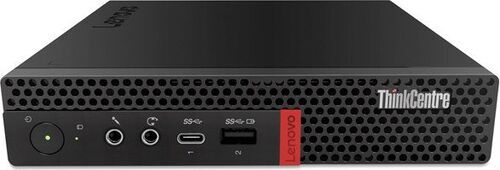
A mini PC in this class is generally about one litre in volume, while a desktop listed as Small Form Factor (SFF) may be much larger, with different options for expansion and storage. Lenovo calls its small desktops Tiny, Dell calls them Micro and HP calls them Mini or Desktop Mini. They generally run from an external power adapter, and the catalogue lists the ThinkCentre M720q Tiny at 179 x 34.5 x 182.9 mm. Check the actual form factor before you compare prices.
The models below come from the refurbed range and are refurbished: professionally tested, cleaned and reconditioned until they are hard to tell apart from new.
Some Lenovo Tiny models have room for extra components; don't assume every model does.
- A card slot: Say you spot the M720q Tiny and plan to add a network card. With the correct riser, it and the M920q Tiny offer a low-profile PCIe connection for an extra card. Check that the riser and bracket are included; a PCIe card and a 2.5-inch drive compete for space.
- Two SSD positions: The later-generation M90q Tiny, M90q G2 Tiny and M90q G3 Tiny can offer two NVMe slots for fast SSDs alongside PCIe expansion. Check the exact generation, memory type and riser: models in the same family do not necessarily have the same board.
- Ryzen PRO: The M75q Tiny G2 offers Ryzen PRO options and two slots for replaceable DDR4 memory, making it well suited to running virtual machines. But it has no M720q-style PCIe card slot. Check its exact processor and networking.
A Dell Micro is straightforward to run as a server: you can turn to extensive documentation and a large second-hand market.
- No card slot: The OptiPlex 7060 Micro, the OptiPlex 7070 Micro (Intel 8th Gen) and the OptiPlex 7070 Micro (Intel 9th Gen) have no general-purpose card slot. For the one you choose, check the exact CPU model and which memory has been validated for that configuration. Check the storage caddy and power adapter too.
- Two M.2 SSDs in some configurations: The OptiPlex 7080 Micro is a later model with an Intel processor; its documentation describes configurations that can hold two M.2 SSDs. Check which connectors are fitted and which drive combinations are supported, rather than relying on specifications for another OptiPlex.
HP Mini machines are known for being easy to maintain and repair, which helps if you need to open one later.
- Drive arrangement: HP's documentation for the EliteDesk 800 G4 DM lists two M.2 storage positions and a SATA bay, but says the factory SATA option is unavailable if you choose the second M.2 drive. Don't assume you can use every listed connector at once. Check the machine's actual drive arrangement and cooling setup.
- Port modules: The EliteDesk 800 G6 DM is another option with a tenth-generation Intel processor and two M.2 storage positions. Before buying, check its power and cooling setup, which port module is included (Flex IO modules vary by model), and which drive combinations it supports.
Compare what comes with the machine, not just its badge: none of the three families is the best choice in every case. A complete HP or Dell with a warranty can be a better buy than a bare Lenovo that needs a shopping list of extra parts.
What a mini PC can run
A mini PC can run all nine of these jobs. Each has a practical catch to check before you rely on it:
- DNS filtering and network services: With a wired connection, they need little processing power to run continuously. But if the mini PC is your household’s only DNS server, a reboot interrupts service for everyone at home.
- Home Assistant and MQTT: A mini PC can easily run home automation and its supporting services. MQTT is the messaging service many smart-home devices use. More important than peak processor speed are the USB radios your smart-home devices may rely on, how you recover after a failure and how reliably those services stay available.
- Containers and self-hosted applications: A container bundles an application with what it needs to run, and an x86-compatible mini PC with replaceable memory can support several containers. But databases, indexing and applications’ growing memory use can demand more resources than you first planned for.
- Media libraries and streaming: Some models have integrated graphics that can speed up transcoding, which converts video on the fly. Whether your video plays well still depends on codec support, drivers, subtitles and HDR processing.
- Virtual machines for learning: Hardware virtualisation lets you run Linux or Windows virtual machines, simulated computers inside your mini PC, for safe practice. Memory, SSD space and licences for the operating systems in those machines may limit you before the number of processor cores does.
- Development and small build jobs: Fast local SSDs help, and a mini PC can work quickly in short bursts. A long build is different: it reveals the limits of the machine’s cooling and the power it can sustain.
- Firewall and routing experiments: Some models let you add physical network ports. Check which network cards they support, how much load a VPN or traffic inspection will add, and what happens to your connection during maintenance.
- Backup coordination and light file sharing: A compact machine that stays available can schedule and receive backups and provide light file sharing. But don’t keep the only copy of important data on that one machine or one SSD.
- Clusters and orchestration: Running several machines as one system lets you see how it handles failures and deployments. Each machine you add brings more network and storage to manage and higher power costs. It does not always raise the quorum, the minimum number of machines that must agree before the cluster can act.
Picture a quiet afternoon: DNS filtering is almost idle, a document service waits for a user and your development virtual machine is switched off. These jobs can often run together because their busiest moments don’t overlap, so a modest processor can support a surprisingly rich setup. But that doesn’t mean the mini PC can run every service at once under heavy load.
Where a mini PC stops
A mini PC looks tempting for your home server until you count the hard disks you want it to hold. It isn't suited to every job, whether you buy it new or refurbished:
- Multi-drive storage: Need a NAS, a box that serves files from many disks? A mini PC is not the obvious choice. For a large collection of hard disks, a separate NAS or a larger desktop of the kind covered in the desktop PC buying guide usually makes more sense.
- Graphics workstations: A mini PC is not a high-end GPU workstation.
- Large databases: A mini PC is not a good fit for a database server that needs a lot of memory.
- Fast local AI: A mini PC does not guarantee fast local AI inference, which means running AI models on your own machine.
- Surveillance: For a large surveillance setup, a mini PC's suitability can come down to three things: how long its storage lasts under repeated writing, whether it can decode video and whether it supports hardware that speeds up processing.
- Heavy game servers: A heavy game server may be held back by how quickly the processor handles one thread of work, long before its average processor use looks high.
A mini PC is still a business desktop, so plan for what happens if it fails. It generally lacks ECC memory (memory that corrects some errors), extra power supplies that take over if one fails, drives you can replace without shutting the machine down and a separate controller for managing the machine remotely. For many home services and learning projects, those are acceptable compromises. A spare machine and a tested backup can be more useful than trying to give a desktop every feature of a server.
Remote management depends on the processor, chipset, firmware and configuration, so check the exact machine before you rely on it. Some configurations offer Intel AMT through vPro or a different business management technology; others offer neither. These technologies can help you switch the machine on or off and troubleshoot it remotely, but do not assume they match a server's independent management controller. Ordinary SSH (a secure remote login) and a hypervisor's web interface (the control page of the software that runs virtual machines) also stop helping when the machine cannot boot or its network has failed.
Buy the generation and configuration, not the badge
An old Core i7 isn't automatically a better home server than a newer Core i5. Core counts, thread counts, graphics capabilities and power use change across generations. Intel's published specifications show the difference even between two chips with the same i5 label:
- Core i5-8500T: Six cores and six threads.
- Core i5-10500T: Six cores and twelve threads.
Hyper-threading helps the processor handle more threads; it does not give it another set of physical cores. Check the generation and specifications rather than relying on an i5 or i7 badge.
Eighth- and ninth-generation Intel machines can still be useful, affordable choices when deeply discounted. By October 2026, though, they are ageing platforms: past popularity alone is no reason to choose one. A well-priced tenth-generation Intel or Ryzen PRO machine may be a more balanced starting point. A refurbished machine from a newer generation can offer the best balance between how much its value has fallen and how much support life it has left.
That price comparison only works if the configuration fits your intended workloads. Check memory, SSD condition and drive layout, and network ports as part of the same decision:
- Memory: Often the first upgrade worth buying. 16 GB can comfortably handle modest services and early experiments; 32 GB gives you more room for several virtual machines. Move to 64 GB only when a workload or clear learning plan calls for it. Check the exact module type, number of slots, supported capacities and firmware. Among the models covered earlier, the catalogue lists DDR5 for the M90q G3 Tiny and DDR4 for the rest. A configuration other owners have got working is useful evidence, not a guarantee from the maker.
- Storage: Match the SSD to the data you'll keep and how you'll write it. A reputable drive whose condition you know is a better choice than an anonymous large drive added to flatter a listing. Check which drive positions can be used together. Where supported, a second internal drive can separate workloads or hold a mirror, a matching copy of the first drive's data. A mirror keeps data available if one drive fails, but it is not a backup: it cannot restore a deleted file, undo an application error or protect against theft.
- Network: One gigabit Ethernet port is enough for many household services. 2.5 or 10 gigabit only helps if the switch, the device at the other end, the cabling and the storage can support it. For a firewall or separate experimental network, a second port may matter more than a faster one. USB-C names the connector; it does not guarantee Thunderbolt, display output, PCIe access or the ability to power the computer.
What owner experience supports, and what it cannot prove
Owners most often say useful home services need less hardware than they expected. Your first machine can soon run DNS, dashboards, automation and a few virtual machines. Take a public homelab project built on an M720q: its builder describes experiments in Proxmox (software for running virtual machines) with Pi-hole (a DNS filter), a Windows Server machine running Active Directory, and Grafana with Prometheus (monitoring tools). The project shows what a setup for learning can look like. It is not a benchmark.
Owners also describe what goes wrong. They discuss missing drive trays, adapter swaps, fan behaviour, the physical space available for storage drives and network-driver problems. In a 2025 Proxmox discussion, one owner reports running three M720q machines for years, though the machines' onboard Ethernet needed attention to stay stable. Together, the years of service and the Ethernet trouble tell you more than an unqualified endorsement.
These reports are not a reliability survey. Enthusiasts who publish their builds aren't necessarily representative of all owners: satisfied owners may never post, while people looking for help gather in support forums. Years of service show you what is possible, but they cannot establish a brand's failure rate. The most useful advice covers exact configurations, symptoms you can observe and tests you can repeat.
One inexpensive machine can lead to another, then a switch, a storage system and a miniature rack. That can be enjoyable and educational. But collecting hardware is a different goal from running dependable home services. Name the next thing you want to learn or improve before you buy the next machine.
Start with one mini PC, add useful services and try new setups
Your first mini PC is ready to set up. Say you make it the household's only DNS server and a test takes DNS down: everyone at home loses the service. In your first week, work through these four steps in order so you have a way back.
- Begin with one machine: Start with one machine. Use the next step to decide how you’ll run your services before installing an operating system. Then update the firmware and record the machine’s settings. Set up backups too, and store them somewhere other than on that machine.
- Choose how to run your services: A standard Linux installation with containers is an efficient way to run services. If you want to run separate operating systems, take snapshots, create virtual networks and repeat experiments, Proxmox is especially useful. Several physical machines make sense if you want to learn about physical failure, migration or distributed systems.
- Keep it private: Keep administration interfaces on trusted networks. If you need remote administration, use authenticated VPN access. Keep your software up to date, protect your accounts with strong security measures and plan how to secure each application you make available on the internet. Making a service available on the internet is a different commitment from running it privately at home.
- Have a fallback plan: Keep a network setup you know works, access to a keyboard and display, a copy of your essential settings and a restore procedure you have tested. Treat household DNS, routing and automation as services with users, even if those users are family. If an experiment fails, maintenance is easier when you still have internet access and can reach the documentation you need to fix the problem.
You can start with useful, affordable hardware, then build on it as you learn its limits. That's what makes this approach appealing in the long run.
Frequently asked questions about mini PC home servers
Can a mini PC work as a home server?
Yes. A mini PC suits light jobs such as DNS filtering, home automation, running containers and serving media. But it isn't built to be a multi-drive NAS, a graphics workstation or a database server that needs a lot of memory. Nor does it guarantee fast local AI. Match it to the job you have in mind.
Can a mini PC run Home Assistant or a DNS filter?
Both run comfortably on a mini PC because they need little processing power. For Home Assistant, USB radios, recovery and keeping the service running matter more than peak processor speed. But if your mini PC is the household's only DNS server, rebooting it interrupts DNS for everyone at home.
How much RAM does a home server need?
If you're starting with modest services and learning how to run a server, 16 GB can be comfortable. For several virtual machines, 32 GB is more forgiving; move to 64 GB only if your plans need it. Check the module type first: among the models named above, the M90q G3 Tiny takes DDR5 and the others DDR4.
Is an old Core i7 better than a newer Core i5?
Not automatically. Suppose you're comparing Intel's Core i5-8500T, with six cores and six threads, and the Core i5-10500T, with six cores and twelve threads. Both carry the i5 label. Check their generations and core and thread counts before you choose.
Can a mini PC be a NAS?
For light file sharing and managing backups, yes. But don't let one machine or one SSD hold the only copy of important data. A mini PC isn't well suited to being a multi-drive NAS; if you have many hard disks, a larger desktop or a separate NAS is usually the simpler option.
Do I need Proxmox, or is Linux with containers enough?
If you're running a few services, Linux with containers is enough and an efficient way to run them. Want to learn about separate operating systems, snapshots and virtual networks, and repeat experiments? That's when Proxmox makes sense. Several physical machines make sense only if you want to learn about hardware failure, migration or distributed systems.
Can I reach a home server from outside the house safely?
Yes, with care. Keep administration interfaces on trusted networks, use authenticated VPN access for remote administration and keep the server's software up to date. If you make an application accessible from the internet, give it its own carefully thought-out security plan. Running a service privately at home and making one accessible to others online carry different security responsibilities.
What do Lenovo Tiny, Dell Micro and HP Mini mean?
They're the names Lenovo, Dell and HP use for small desktops of about one litre with an external power adapter. But a listing marked SFF, for Small Form Factor, may describe a much larger desktop. Check its size before comparing machines in the desktop PC range.
Find the right mini PC to use as a home server
A mini PC can run your home automation, but it is not the obvious choice for a multi-drive NAS. You now know what a small PC can handle, where it stops and what to check before buying. Choose one that suits your jobs, and start with just one machine.
You can look for that first machine in the refurbed range. The marketplace gives refurbished electronics a second owner and won Austria's overall EY Scale-up of the Year 2023.
See how the machine handles your own jobs before you decide whether to keep it; you have 30 days to send it back. Every refurbed purchase also comes with a minimum 12-month warranty. Browse the range and see what fits.


Sign up for our newsletter for the first time and save 15€!
Never miss an offer again.
Information about the use of personal data can be found in our Privacy policy.
Get the refurbed app
For iOS and Android


Confirm sign-up
Click the link in our confirmation e-mail to receive your voucher. It will be applicable to purchases from € 200.
- © Refurbed Marketplace GmbH
- Accessibility
- T&C
- Privacy Policy
- Imprint
- Legal Notices
- European Data Act
- Cookie Policy